Key Takeaways
- A page that isn't indexed can't appear in Google Search, or in Google's AI Overviews and AI Mode, which only show pages that are indexed and eligible for a snippet.
- Almost every case falls into four groups: Google can't reach the page, you told it not to index it, it chose another URL as the main version, or it decided the page isn't worth indexing yet.
- Search Console's Pages report names the reason, and the URL Inspection tool shows it for a single page. Fix the cause before you request indexing.
- "Crawled – currently not indexed" is usually about page quality or duplication. "Discovered – currently not indexed" is usually about Google not having got round to crawling the page yet.
- Not every page should be indexed. Login pages, thank-you pages and filtered duplicates are better left out.
What Does "Page Not Indexed" Mean?
"Page not indexed" means Google knows about a URL, or has tried to, but hasn't added it to its index: the database that search results are drawn from. If a page isn't in the index, it can't rank for anything, however good it is.
Google's own explanation of how Search works describes three stages: crawling (Googlebot downloads the page), indexing (Google analyzes it and decides whether to store it) and serving (it shows the page in results). A page can fail at any of the three. Crawled doesn't mean indexed, and indexed doesn't mean it ranks. This article is about the middle step.
The same step now decides whether you appear in Google's AI answers. Google's guidance on AI features says that to be shown as a supporting link in AI Overviews or AI Mode, a page "must be indexed and eligible to be shown in Google Search with a snippet." There's no separate AI index to submit to: get indexed, and you're eligible.
How to Check If a Page Is Indexed
Use Google Search Console's URL Inspection tool. It's the only check that tells you for certain, and it gives the reason when the answer is no.
1. URL Inspection (one page)
Paste the full URL into the search bar at the top of Search Console. You'll see either "URL is on Google" or "URL is not on Google" with a reason, plus the last crawl date, the canonical URL Google chose and whether crawling and indexing are allowed. Test live URL checks the current version of the page, which matters if you've just fixed something.
2. The Pages report (your whole site)
Under Indexing → Pages, the page indexing report splits your URLs into indexed and not indexed, and lists every reason under "Why pages aren't indexed." Click a reason to see the affected URLs. This is where most indexing problems are found.
3. A site: search (a rough check)
Searching site:example.com/your-page/ shows whether Google returns the URL. It's quick, but it's not reliable in either direction, so treat it as a hint and confirm in Search Console.
4. Rule out the technical blockers first
Before digging into Search Console, run the URL through the Indexability Checker. It reads the six signals that can stop indexing on their own: the HTTP status, robots.txt, the robots meta tag, the X-Robots-Tag header, the canonical tag and the page's redirects. If one of those says no, you've found your answer in seconds.
Every Reason a Page Isn't Indexed, and the Fix
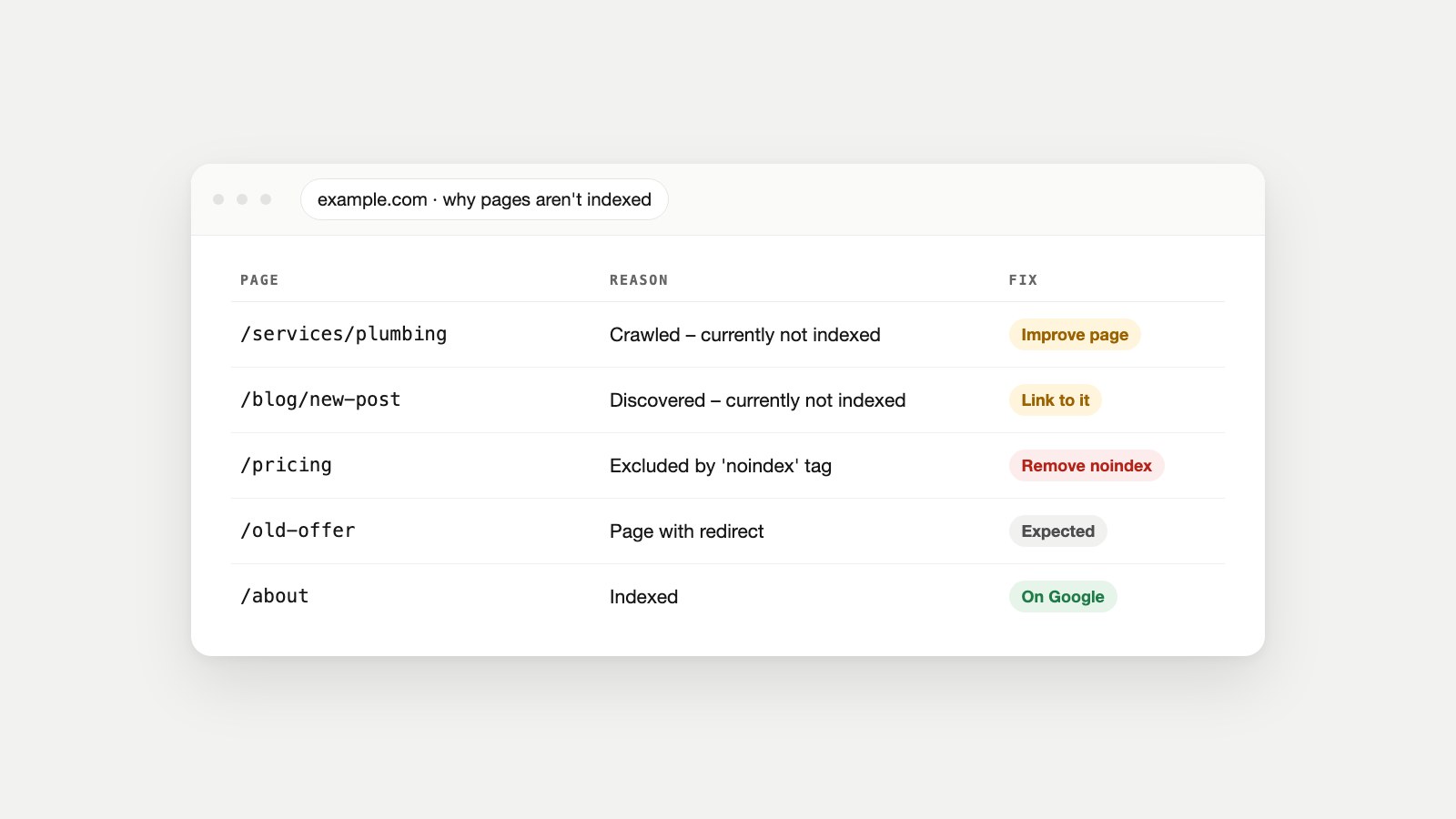
These are the statuses you'll see in the Pages report, grouped by cause. Some are problems; some are Google doing exactly what you asked:
| Status in Search Console | What it means | What to do |
|---|---|---|
| Crawled – currently not indexed | Google read the page and chose not to index it for now | Improve or merge the page; strengthen internal links |
| Discovered – currently not indexed | Google knows the URL but hasn't crawled it yet | Link to it from important pages; keep it in your sitemap |
| Excluded by 'noindex' tag | The page tells Google not to index it | Remove noindex if the page should be in search |
| Blocked by robots.txt | Google isn't allowed to crawl the URL | Allow it in robots.txt, or leave it if it's private |
| Page with redirect | The URL redirects somewhere else | Usually nothing: the target gets indexed instead |
| Alternate page with proper canonical tag | The page points to another URL as the main version | Nothing, if that's intended |
| Duplicate without user-selected canonical | Google sees duplicates and none is marked as main | Add a canonical tag to the version you want |
| Duplicate, Google chose different canonical than user | Google ignored your canonical choice | Make the versions distinct, or change the canonical |
| Not found (404) | The page doesn't exist | Restore it, 301 it, or remove links to it |
| Soft 404 | The page returns 200 but looks empty or missing | Add real content, or return a proper 404 |
| Server error (5xx) | Your server failed when Google tried | Fix the server; check hosting limits and firewalls |
| Blocked due to access forbidden (403) or unauthorized (401) | The page needs a login or refused Googlebot | Remove the restriction for public pages |
| Redirect error | The redirect loops, is too long or points to a bad URL | Make it one clean hop to a working page |
| URL is unknown to Google | Google hasn't found the URL at all | Link to it and add it to your sitemap |
Below are the reasons people search for most, in more detail.
Crawled – Currently Not Indexed: What It Means
"Crawled – currently not indexed" means Googlebot visited the page, read it, and decided not to add it to the index for now. Nothing technical blocked it. Google simply didn't think it was worth storing at that moment. It can be re-evaluated on a later crawl.
In practice, these are the usual causes:
- Thin or unhelpful content. Short pages, auto-generated pages, tag archives or pages that answer nothing a searcher would ask.
- Near-duplicates. Several pages that say almost the same thing, such as location pages with only the town name swapped, or product variants with identical descriptions.
- Weak internal linking. A page linked only from a sitemap, or buried five clicks deep, signals that even you don't consider it important.
- A new or low-authority site. Google indexes more selectively when it has little evidence a site is trustworthy.
How to fix it: make the page clearly better than what already ranks for its topic (answer the question directly, add your own data or examples), merge thin or overlapping pages into one strong page and 301 redirect the rest to it, and link to the page from your homepage, your navigation or your most-visited articles. Then request indexing once. Repeatedly requesting indexing for an unchanged page won't help.
Discovered – Currently Not Indexed: What It Means
"Discovered – currently not indexed" means Google found the URL, usually in your sitemap or through a link, but hasn't crawled it yet. Google's Pages report explains that this typically happens when crawling the site was expected to overload the server, so the crawl was rescheduled.
The difference from "crawled" matters: with discovered, Google hasn't judged the content at all; it just hasn't visited. The fixes are about making the page a priority and your site easy to crawl:
- Link to it internally, from pages Google already crawls often.
- Keep your sitemap clean. A sitemap full of redirects, 404s and duplicates teaches Google that your URLs aren't worth rushing for. Check yours with the Sitemap Checker.
- Speed up the server. Slow responses and timeouts make Google crawl less. Check hosting limits and any firewall rules that throttle bots.
- Cut low-value URLs. Endless filter, search and tag URLs use up the attention your important pages need.
Excluded by 'noindex' Tag: Find It and Remove It
"Excluded by 'noindex' tag" means the page itself asks search engines not to index it, and Google is obeying. If the page should be in search, the fix is to find where the noindex comes from and remove it.
A noindex can come from two places, as Google's noindex documentation explains: a robots meta tag in the page's HTML (<meta name="robots" content="noindex">), or an X-Robots-Tag HTTP header sent by the server, which you won't see in the page source at all. The usual culprits:
- WordPress: the "Discourage search engines from indexing this site" box under Settings → Reading, often left ticked after a site launch, or a per-page noindex setting in Yoast, Rank Math or All in One SEO.
- Staging settings copied to the live site during a migration.
- Server or CDN rules that add an X-Robots-Tag header to whole folders or file types.
The Indexability Checker shows both sources at once, which is the fastest way to tell a meta tag from a header. After removing it, use Test live URL in Search Console to confirm Google now sees an indexable page, then request indexing.
Blocked by robots.txt: Why It Doesn't Stop Indexing
robots.txt controls crawling, not indexing. A URL blocked in robots.txt can still be indexed, without its content, if other pages link to it; Search Console calls this "Indexed, though blocked by robots.txt."
This trips up a lot of site owners. If you want a page out of Google, use noindex and leave the page crawlable. Google is explicit that the crawler never sees the noindex rule if the page is blocked by robots.txt. If you want a page in Google, make sure robots.txt doesn't disallow it. Our guide to what robots.txt is and how it works covers the syntax, and the Robots.txt Generator builds a file that keeps private areas private without blocking the pages you want found.
One more check: your firewall or CDN. Some security settings challenge or block Googlebot and AI crawlers before robots.txt even comes into play. The AI Crawler Access Test shows which crawlers actually reach your pages.
Canonical and Duplicate Statuses
When several URLs show the same content, Google indexes one of them, the canonical, and treats the rest as duplicates. That's normal, and those duplicate statuses are often not a problem.
The duplicates most sites create by accident are address variants: http:// and https://, www and non-www, with and without a trailing slash, and URLs with tracking parameters. Each one should redirect to a single version (the Redirect Checker shows whether yours do), and each page should carry a self-referencing canonical tag. Google's guide to consolidating duplicate URLs lists the signals it uses: redirects, canonical tags, sitemaps and internal links all pointing the same way.
When Google picks a different canonical than the one you declared, it's usually because your signals disagree: the canonical tag says one URL, but internal links and the sitemap point to another. Make them consistent.
Reasons That Don't Show Up as a Status
- The content only appears after JavaScript runs. Google can render JavaScript, but rendering is delayed and can fail. Google's JavaScript SEO basics recommend making key content available in the HTML. Many AI crawlers don't run JavaScript at all; see what an AI crawler is.
- The page isn't usable on phones. Google crawls with a smartphone crawler, so content that's missing on mobile is missing from the index. Our guide to making a website mobile-friendly covers what to check, and the Mobile-Friendly Checker tests one page.
- It's an orphan page. No internal links point to it, so Google has little reason to think it matters.
- Broken internal links. Links that lead to 404s waste crawls and cut off whatever sits behind them. Our guide to broken links explains how to find and fix them.
- The site is brand new. It can take time for Google to crawl a new domain. A sitemap, a few links from other sites and a Search Console property speed that up.
How to Get Google to Index Your Page
Fix the cause first, then tell Google. Requesting indexing for a page with a noindex tag or a thin-content problem just gets the same answer again.
- Inspect the URL in Search Console and note the exact reason it gives.
- Fix that reason: remove the noindex, unblock robots.txt, repair the redirect, merge the duplicate or improve the content.
- Link to the page from at least two or three relevant pages that are already indexed, using descriptive anchor text.
- Add it to your XML sitemap and make sure the sitemap is submitted under Indexing → Sitemaps. A sitemap is the best way to tell Google about many URLs at once.
- Click Test live URL, confirm the page is indexable, then click Request indexing.
- Wait, then check again. Don't keep resubmitting; there's a daily quota, and it won't speed anything up.
- Notify Bing too: submit the URL in Bing Webmaster Tools or ping IndexNow, since Bing's index also feeds other search and AI products.
How long does Google take to index a page? Google's documentation on asking Google to recrawl says crawling "can take anywhere from a few days to a few weeks," and that requesting a crawl doesn't guarantee inclusion in search results "instantly or even at all." Important pages on established sites are often picked up within days; new sites and low-priority pages take longer.
Should Every Page Be Indexed?
No. A healthy site keeps some pages out of search on purpose. The goal isn't 100% indexed; it's every page you want found being indexed.
We checked three of our own pages. Our homepage passes every indexability signal. Our login page is blocked in robots.txt on purpose, because private pages don't belong in search results. And a job page that no longer exists returns a 404 with a noindex tag, also on purpose. In our own Search Console, the Sitemaps report shows our sitemap read successfully with 51 discovered pages, and the Pages report lists the redirects and removed pages we expect to see.
Pages that usually belong out of the index: login, account and checkout pages; thank-you and confirmation pages; internal search results; filter and sort combinations; staging copies; and thin tag or author archives. Pages that must be indexed: your homepage, service and product pages, category pages, and every article you want to rank. If one of those shows up under "not indexed," that's where to spend your time.
Keep Pages From Falling Out of the Index
Indexing isn't permanent. Pages drop out after a redesign adds a stray noindex, a migration breaks redirects, or a plugin update changes canonical tags. A few habits catch this early:
- Check the Pages report monthly, and after every release, migration or plugin update.
- Re-run the Indexability Checker on your most important pages after any template change.
- Watch for sudden drops in clicks on top pages; a page that leaves the index loses its traffic overnight. Cash Cow Stalker checks your top pages every five days and alerts you when one drops out of Google.
- Let Owl-gorithm Hacker audit crawling, indexing, duplicate content and on-page basics across the whole site, layer by layer, so problems are found before they cost traffic.
FAQ
How long does it take Google to index a new page?
Anywhere from a few days to a few weeks, according to Google. Linking to the page from already-indexed pages and including it in your sitemap usually speeds things up; requesting indexing again and again doesn't.
What is the difference between 'crawled' and 'discovered – currently not indexed'?
Discovered means Google knows the URL but hasn't visited it yet. Crawled means Google visited and read the page, then decided not to index it for now, which usually points to content quality or duplication.
Does requesting indexing in Search Console guarantee my page gets indexed?
No. It asks Google to crawl the page sooner, but Google still decides whether to index it. There's also a quota on individual requests, and repeating a request doesn't make it faster.
Why is Google not indexing my new website?
The most common reasons are a sitewide noindex left on from development, a robots.txt that blocks everything, a missing sitemap, or simply a lack of links pointing to the new domain. Verify the site in Search Console, submit a sitemap and check a few key URLs with URL Inspection.
Does robots.txt stop a page from being indexed?
No. robots.txt stops crawling, but a blocked URL can still be indexed if other pages link to it. To keep a page out of search, use a noindex tag and leave the page crawlable so Google can see it.
Can a page be indexed but not ranking?
Yes. Indexing only makes a page eligible to appear. Where it ranks depends on relevance, quality and competition for the search.
How do I check if Google has indexed my page?
Use the URL Inspection tool in Search Console: it says "URL is on Google" or "URL is not on Google" with the reason. A site: search gives a rough hint but isn't reliable.
Do I need to be indexed in Google to appear in AI Overviews?
Yes. Google says a page must be indexed and eligible to be shown with a snippet to appear as a supporting link in AI Overviews or AI Mode. There are no extra technical requirements beyond that.
Start With the One Page That Matters Most
Pick the most important page that isn't indexed, find its exact reason in Search Console, and fix that one cause before touching anything else. The Indexability Checker rules out the technical blockers in seconds; for the rest, check that your redirects are clean, your sitemap is valid and your titles and descriptions give Google a clear reason to show the page. For a broader view of how search is changing, read how AI agents are changing SEO and how to check your AI visibility. Once your key pages are in the index, a full SEO audit finds the next problems before they cost traffic.
Sources
- In-depth guide to how Google Search works, Google Search Central.
- AI features and your website, Google Search Central.
- Page indexing report, Search Console Help.
- URL Inspection tool, Search Console Help.
- Block Search indexing with noindex, Google Search Central.
- How to specify a canonical URL and consolidate duplicates, Google Search Central.
- Understand the JavaScript SEO basics, Google Search Central.
- Learn about sitemaps, Google Search Central.
- Ask Google to recrawl your URLs, Google Search Central.