Key Takeaways
- Google Search Console is Google's free dashboard that shows how your site appears in Google Search: what people searched, how often you showed up and which pages have problems.
- Set it up as a Domain property if you can add a DNS record; it covers every version of your site, including http, https, www and subdomains.
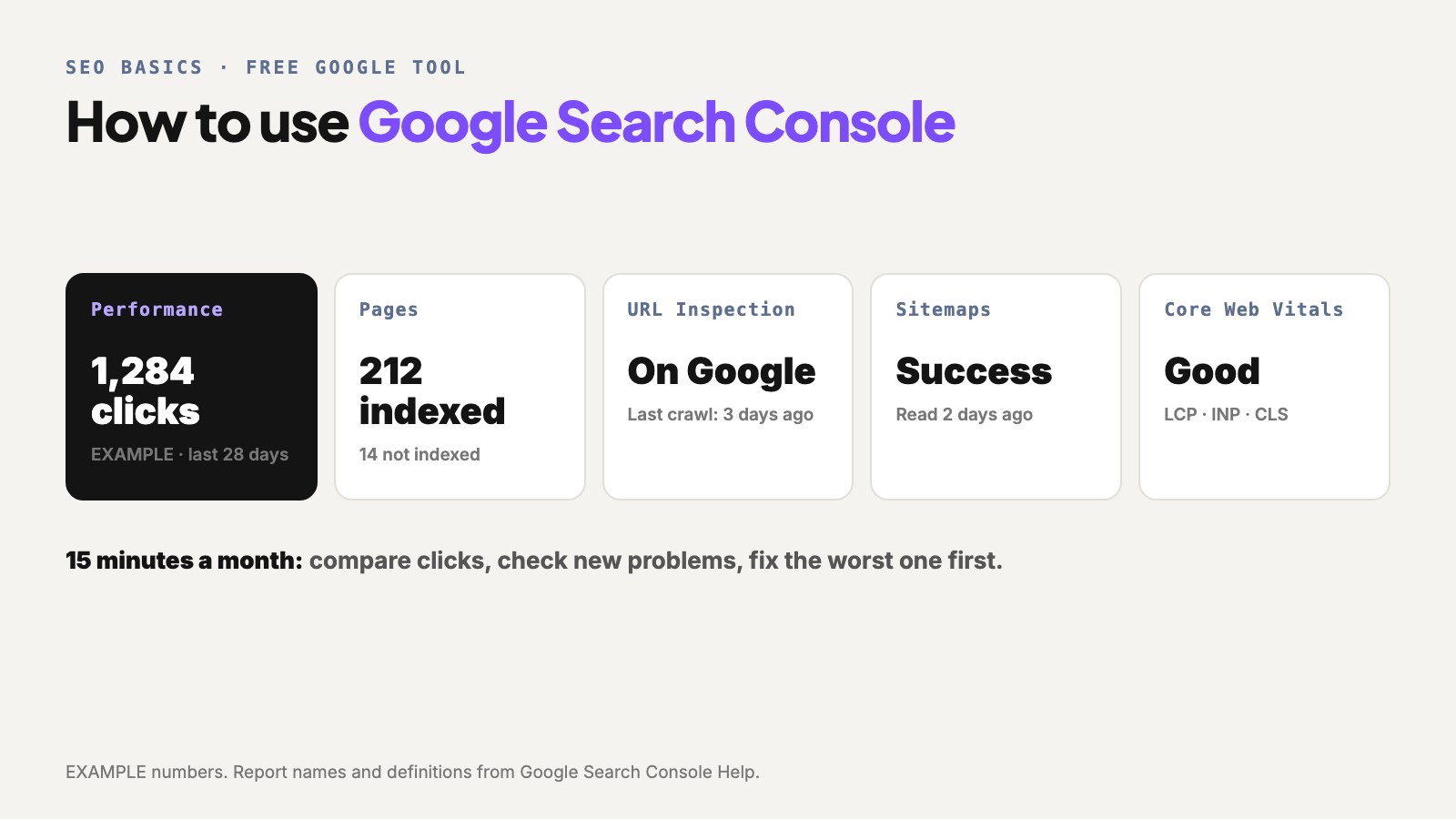
- Five reports cover almost everything a small business needs: Performance, Pages, URL Inspection, Sitemaps and Core Web Vitals.
- Fifteen minutes a month is enough: check clicks and queries, look for new indexing problems, and fix the worst one first.
What Google Search Console Is (and Isn't)
Google Search Console is a free Google service that shows how Google crawls, indexes and ranks your site. Google describes it as a service that "helps you monitor, maintain, and troubleshoot" your site's presence in Search results. It's the only place where Google itself tells you which searches showed your pages and which pages it couldn't index.
It isn't an analytics tool. Search Console shows what happens before someone reaches your site: the search, the result, the click. Google Analytics shows what they do after they arrive. You need both, but if you only have time for one SEO tool, this is the one, because the data comes straight from Google.
You also don't need to use it to appear in Google. Google finds most sites on its own. Search Console simply tells you what Google found, what went wrong and what people searched to find you, which is exactly what you need to improve.
How to Set Up Google Search Console in 10 Minutes
Sign in with a Google account, add your site as a property, verify that you own it, then submit your sitemap. The only real decision is which type of property to create.
Domain property or URL-prefix property
Google's help page on adding a property explains the difference: a Domain property captures "data from that domain and all subdomains and protocols (http/https)", while a URL-prefix property "specifies the start of a URL" and only covers addresses that begin with exactly that prefix.
| Category | Domain property | URL-prefix property |
|---|---|---|
| Example | example.com | https://www.example.com/ |
| Covers http and https | Yes | Only the protocol you enter |
| Covers www and non-www | Yes | Only the version you enter |
| Covers subdomains (shop.example.com) | Yes | No |
| How to verify | DNS record only | HTML file, HTML tag, Google Analytics, Tag Manager and more |
| Best for | Most small businesses | When you can't edit DNS, or want one section on its own |
Pick a Domain property if you can log in to the company that manages your domain, because it shows all your traffic in one place. Google's verification guide says a DNS record "is required only for Domain property", so URL-prefix properties are the fallback when DNS is out of reach.
The setup steps
- Go to Search Console and sign in with the Google account you use for the business.
- Click Add property, choose Domain, and type your domain without https or www (for example, example.com).
- Copy the TXT record Google shows you and add it in your domain provider's DNS settings.
- Return to Search Console and click Verify. DNS changes can take a while to appear, so try again later if it fails the first time.
- Open Sitemaps, enter your sitemap address (often /sitemap.xml) and submit it.
Data starts collecting from the moment you verify, so set it up today even if you won't look at it for a few weeks. If your site also needs to reach Bing and Copilot, our Bing Webmaster Tools guide shows how to import this property in three minutes.
Report 1: Performance (What People Search to Find You)
The Performance report shows the searches that displayed your site, how often people saw you and how often they clicked. It's the report you'll open most, and the one that tells you what's working.
Google's Performance report documentation defines the four numbers at the top:
| Metric | Google's definition | What it tells a small business |
|---|---|---|
| Clicks | "The number of times a user clicked your site from Google Search results." | Real visits from Google |
| Impressions | "How many times your site appeared in Search results." | How visible you are, even without clicks |
| CTR | "The click count divided by the impression count." | Whether your title and description earn the click |
| Average position | "The average position of the topmost result from your site." | Roughly where you rank, averaged across searches |
Below the chart, switch between the Queries, Pages, Countries and Devices tabs. The two worth your time:
- Queries lists the actual words people typed. Sort by impressions to find searches where you appear but rarely get clicked. Those are your quickest wins, and our keyword research guide shows how to turn them into new pages.
- Pages shows which URLs earn the clicks. If a page has thousands of impressions and almost no clicks, rewrite its title and description; our guide to meta titles and descriptions explains how.
One thing to know about average position: it's an average of your best spot across every search, so a page ranking first for one query and fiftieth for another can show 25. Read it as a trend, not a rank.
If clicks suddenly fall, compare date ranges in this report before changing anything. Our guide on why website traffic drops walks through the usual causes.
Report 2: Pages (Which Pages Google Can't Index)
The Pages report lists which of your pages Google has indexed and, more importantly, which it hasn't and why. Google says it helps you "See which pages Google can find and index on your site" and learn about any problems.
Scroll to the table titled "Why pages aren't indexed". Not every entry is a problem. Pages you deliberately hid with noindex, duplicate versions with a canonical tag elsewhere, and redirected URLs are supposed to be excluded. Look for two things instead:
- Pages you want customers to find, such as services, products and key articles, appearing in the not-indexed list.
- Server errors (5xx) and not-found pages (404) growing over time. Our guide to 5xx server errors explains why they matter.
Each reason has its own fix, and our guide on why a page isn't indexed covers every common one, from "Crawled, currently not indexed" to "Excluded by noindex tag".
Report 3: URL Inspection (Check One Page Properly)
URL Inspection shows exactly how Google sees a single page: whether it's indexed, when it was last crawled and what's stopping it. Google says the tool "provides information about Google's indexed version of a specific page".
Paste any URL from your site into the search bar at the top of Search Console. You'll see whether the page is on Google, which canonical Google chose, and whether it's mobile-friendly. Click Test live URL to check the current version, which is useful right after a fix.
When a page is new or newly fixed, click Request indexing, which Google describes as asking for the URL to be crawled. There's a daily limit per property, so save it for pages that matter. For a quick outside check of a single page, our free Indexability Checker tests the common blockers without logging in.
Report 4: Sitemaps (Tell Google What Exists)
The Sitemaps report is where you submit your sitemap and see whether Google could read it. According to Google's Sitemaps report guide, you paste the address into the "Add a new sitemap" box and click Submit.
After submitting, check the status column. "Success" means Google read the file. Anything else needs attention, usually a wrong address, a blocked file or a sitemap listing pages that redirect or don't exist. Our free Sitemap Checker finds those errors before Google does, and our sitemap guide explains what belongs in one.
Report 5: Core Web Vitals (Is Your Site Fast for Real Visitors)
The Core Web Vitals report groups your pages into Good, Needs improvement and Poor based on real visitors' experience. Google explains that it's based on three metrics "as measured by actual user data: LCP, INP, and CLS", with the data coming from the Chrome UX Report.
Because it uses real visits, small sites often see "Not enough data". That's normal. In that case, test individual pages in PageSpeed Insights instead; our guide on how to read PageSpeed Insights explains the numbers, and what Core Web Vitals are covers each metric.
A 15-Minute Monthly Search Console Routine
Open the same reports in the same order every month, and fix one thing each time.
- Performance: compare the last 28 days with the previous 28. Note clicks, impressions and any page that dropped.
- Queries: find one search with high impressions and a low click-through rate, and improve that page's title.
- Pages: check whether any important page moved into "not indexed", and whether 404 or 5xx counts grew.
- URL Inspection: test the page you fixed last month and request indexing if it changed.
- Sitemaps: confirm the status is still Success and the last read date is recent.
Write the numbers in a simple spreadsheet. After three months you'll see trends that a single visit never shows. A full SEO audit is still worth doing once or twice a year, but this routine catches most problems early.
Common Search Console Mistakes
- Only adding the www or the https version. A URL-prefix property for one version misses traffic to the others. Use a Domain property.
- Panicking at every excluded page. Redirects, duplicates and noindex pages are meant to be excluded. Focus on pages you want found.
- Reading average position as your rank. It's an average across every search that showed you. Watch the direction, not the number.
- Requesting indexing over and over. It doesn't speed things up beyond the first request, and there's a daily limit.
- Never checking after a redesign. Most traffic drops after a relaunch show up here first. Our website redesign SEO checklist explains what to watch.
How CMO Owls Reads Search Console for You
Search Console tells you what's wrong. CMO Owls connects to it, works out what to do about it and does much of the work. When you connect Google, the Owls use your own Search Console data alongside a full crawl of your site.
| Category | On your own | A typical SEO tool | CMO Owls |
|---|---|---|---|
| Explains each problem in plain words | You research it | Partly | Yes, with a fix list, worst problem first |
| Checks every page, not just the ones Google reports | No | Yes | Yes: Watch Owl crawls up to 500 pages with 54 checks |
| Alerts you when a top page loses clicks | Only if you look | Sometimes | Yes: Cash Cow Stalker checks every five days |
| Turns your queries into a content plan | Manual | Rarely | Yes: Game Plan Owl builds it from your Search Console queries |
| Writes the pages that fill the gaps | You write them | No | Yes: Owlthor writes and publishes them |
| Shows what AI assistants say about you | No | Rarely | Yes: Generative Engine Owl |
- Watch Owl crawls up to 500 of your pages in a real browser, runs 54 checks and, with Search Console connected, adds Google's own URL Inspection for any crawled page and whether your sitemap is submitted.
- Cash Cow Stalker watches your top ten pages by clicks, checks them every five days using Search Console, GA4 and the page itself, and alerts you when clicks fall, rankings slip or a page drops out of Google.
- Game Plan Owl builds a monthly content roadmap from your audit, your competitors' rankings and your Search Console queries, and Owlthor writes the articles.
You still own the account and the data. The difference is that instead of opening five reports and guessing, you get one list of what to fix, and the Owls keep checking after you've fixed it.
Mind Map: Google Search Console
Frequently Asked Questions
Is Google Search Console free?
Yes. Search Console is a free service from Google for anyone who can prove they own or manage a website.
What is the difference between Google Search Console and Google Analytics?
Search Console shows how your site performs in Google Search before the click: searches, impressions, rankings and indexing problems. Google Analytics shows what visitors do on your site after they arrive.
Should I use a Domain property or a URL-prefix property?
Use a Domain property if you can add a DNS record, because it covers http, https, www and every subdomain. Use a URL-prefix property only if you can't edit DNS or want to track one section separately.
How long does Search Console take to show data?
Data starts collecting once the property is verified, and the reports fill in over the following days. A brand-new site may show very little until Google has crawled it and people start seeing it in results.
What does average position mean in Search Console?
It's the average of your highest position across every search that showed your site in the selected period. Because it mixes many searches, use it to spot trends rather than as a single ranking.
Why does Search Console show fewer pages than my site has?
Some pages aren't indexed, either because of a problem or because they're meant to be excluded, such as redirects, duplicates and noindex pages. The Pages report lists each reason.
How do I get Google to index a new page?
Make sure it's linked from another page and listed in your sitemap, then inspect it with URL Inspection and click Request indexing. Google decides when and whether to index it.
How often should I check Search Console?
Once a month is enough for most small businesses, plus a quick check after any big change such as a redesign, a new site or a sudden drop in enquiries.
The Next Step
Set up a Domain property today, submit your sitemap and open the Performance report next month with the routine above. Then add your website to CMO Owls and connect Google, so the Owls can turn your Search Console data into one fix list and keep watching your most valuable pages for you.
Sources
- About Search Console, Google Search Console Help, 2026.
- Add a website or platform property to Search Console, Google Search Console Help, 2026.
- Verify your site ownership, Google Search Console Help, 2026.
- Performance report (Search results), Google Search Console Help, 2026.
- Page indexing report, Google Search Console Help, 2026.
- URL Inspection tool, Google Search Console Help, 2026.
- Sitemaps report, Google Search Console Help, 2026.
- Core Web Vitals report, Google Search Console Help, 2026.